Resizing & density
Resizing
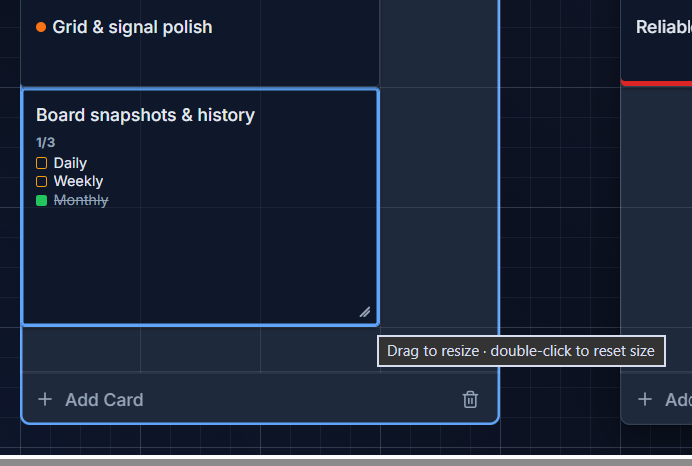
Section titled “Resizing”Drag a card’s bottom-right corner handle to change how many columns and rows it spans. Double-click the handle to reset it back to its default size. Resizing always snaps to whole grid cells.
Density adapts to size
Section titled “Density adapts to size”A card’s content adjusts automatically to how much space you’ve given it, so a small card still reads cleanly and a large one can show everything at once:
- 1 row tall — a compact strip: just the title, glyph centered and shrunk, no due date shown.
- 2 rows tall — title plus label dots in the corner, still no date.
- 3 rows tall — the due date reappears.
- 4+ rows tall — full layout: stacked fields, labels shown as full pills instead of dots.
Checklists follow the same idea — a small card shows a compact tile-and-count summary, while a larger card shows the full task list. This means resizing a card isn’t just cosmetic; it’s how you choose how much detail shows up on the board face versus staying tucked away in the detail panel.